User Guide & Documentation
Learn how to present with confidence. From installation to section-jump workflows.
Introduction
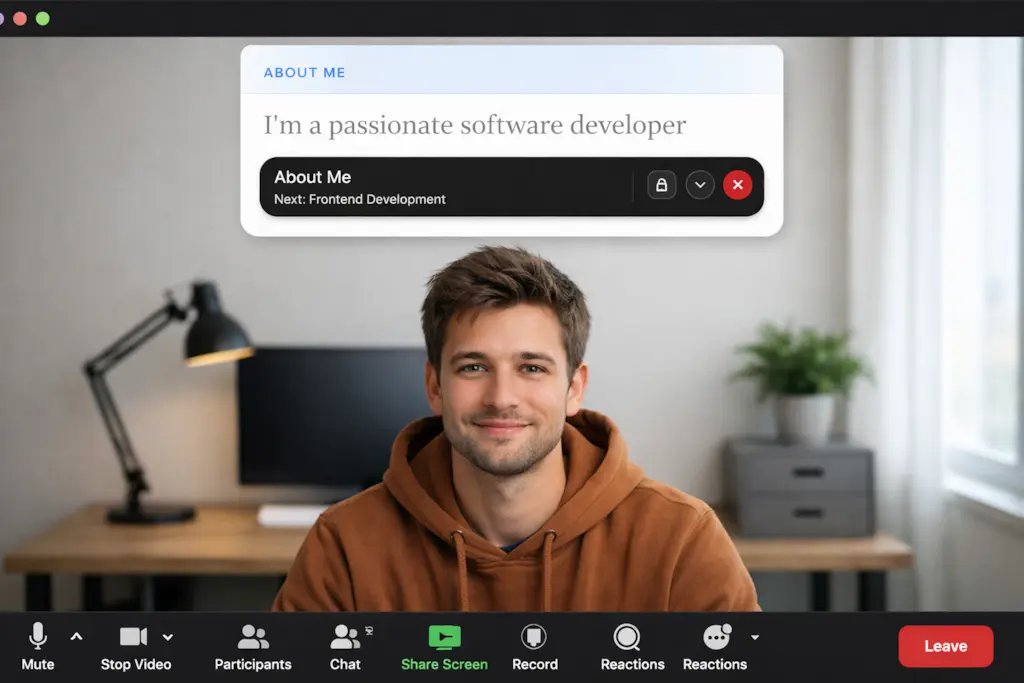
Glance is an elegant, transparent teleprompter overlay for macOS and Windows. Designed for professionals who need to maintain perfect eye contact during high-stakes Zoom, Teams, or Google Meet calls.
Installation
macOS
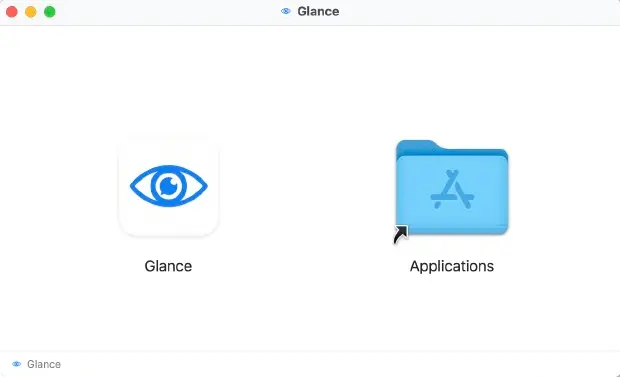
1. Download the .dmg installer.
2. Drag Glance to your Applications folder.
3. Open the app and click Open when prompted (Glance is verified & notarized by Apple).
Windows
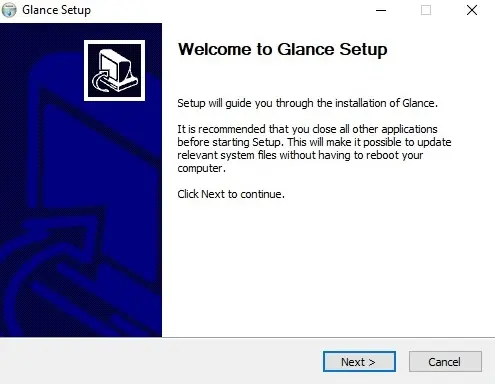
Glance is available directly in the Microsoft Store for seamless setup.
1. Search for "Glance Teleprompter" in the Store.
2. Click Install.
3. Launch from your Start Menu.
Having trouble? View installation troubleshooting
The Onboarding Flow
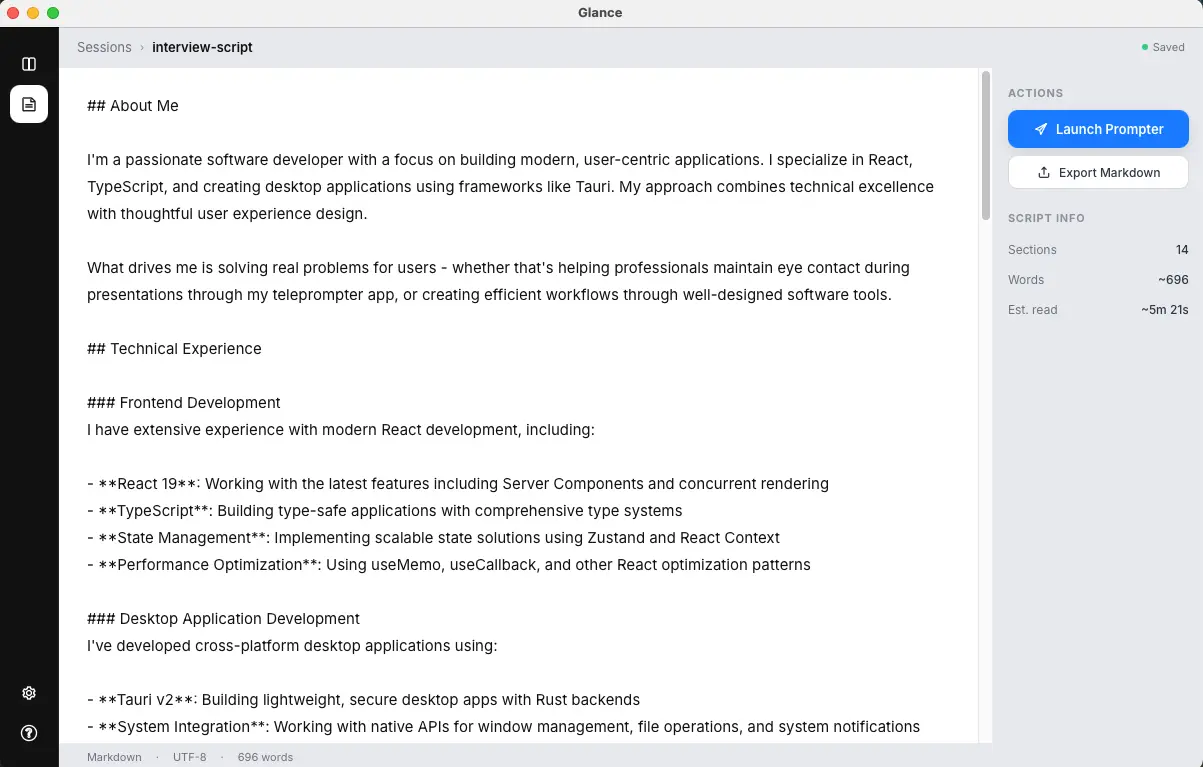
Glance is designed to be learned in seconds. When you first launch the app, follow these three steps:
- Prepare your script: Paste or import your text directly or drop a Markdown file into the editor.
- Automatic Positioning: The prompter launches at the top center under your camera. You can adjust the height or collapse controls to fit your setup.
- Control your flow: Adjust speed, font size, and opacity on the fly, enable Voice Sync or Auto-Pause with Voice, or hide the prompter instantly using keyboard shortcuts.
Managing Scripts
You can work with scripts in three ways:
- Direct Entry: Type and edit directly within Glance.
- Paste: Bring in text from any document or website.
- Markdown Import: Load
.mdfiles to keep your styling and headings intact.
Presentation Controls
Customize your reading experience on the fly. Glance puts all the essential controls directly at your fingertips.
Play & Pause
Start or stop the prompter scroll instantly. Perfect for pausing to expand on a thought or answer a question.

Adjust Speed
Fine-tune the scrolling pace to match your natural speaking rhythm using the slider or keyboard shortcuts.

Font Size
Dial in the perfect text scale. Make your script readable at any distance without squinting or leaning in.

Toggle Panel
Once your settings are dialled in, hide the controls completely to enjoy a distraction-free confidence screen.

Snap to Center
Instantly align your text directly under your camera lens to guarantee flawless, natural eye contact with your audience.

Adjust Opacity
Move from a barely-there overlay to a more solid reading surface depending on the call, your background, and your screen brightness.

Auto-Pause with Voice
Let Glance pause the scroll automatically when you stop speaking, then continue when you start again. Ideal for live calls where your pace changes as you explain, answer questions, or improvise.
When enabled, Glance asks for microphone permission. Audio is analysed locally on your device to detect speech and silence only. Nothing is recorded or uploaded.
Choose a pause delay of 1s, 2s, or 3s depending on how quickly you want Glance to pause after silence.

Voice-Synced Scrolling
Glance listens as you speak and follows your voice in real time, highlighting the current word and automatically advancing your script with fluid spring physics.
Quick Setup:
- Get an API key at portal.speechmatics.com (Speechmatics provides free starter credits with no credit card required upfront).
- Open Glance Settings (gear icon) and paste your key into the Speechmatics Key field.
- Toggle Voice Sync in the prompter overlay controls.
Glance is an independent local-first application and is not affiliated with, sponsored by, or endorsed by Speechmatics in any way. Speechmatics is a registered trademark of Speechmatics Ltd.
Elapsed Timer
Keep track of your presentation length in real-time. Ensure you hit your marks and never accidentally run over time.

Quick Hide
Need to check your notes or a window beneath the prompter? Hide the entire overlay instantly when it's not needed.
Keyboard Shortcuts
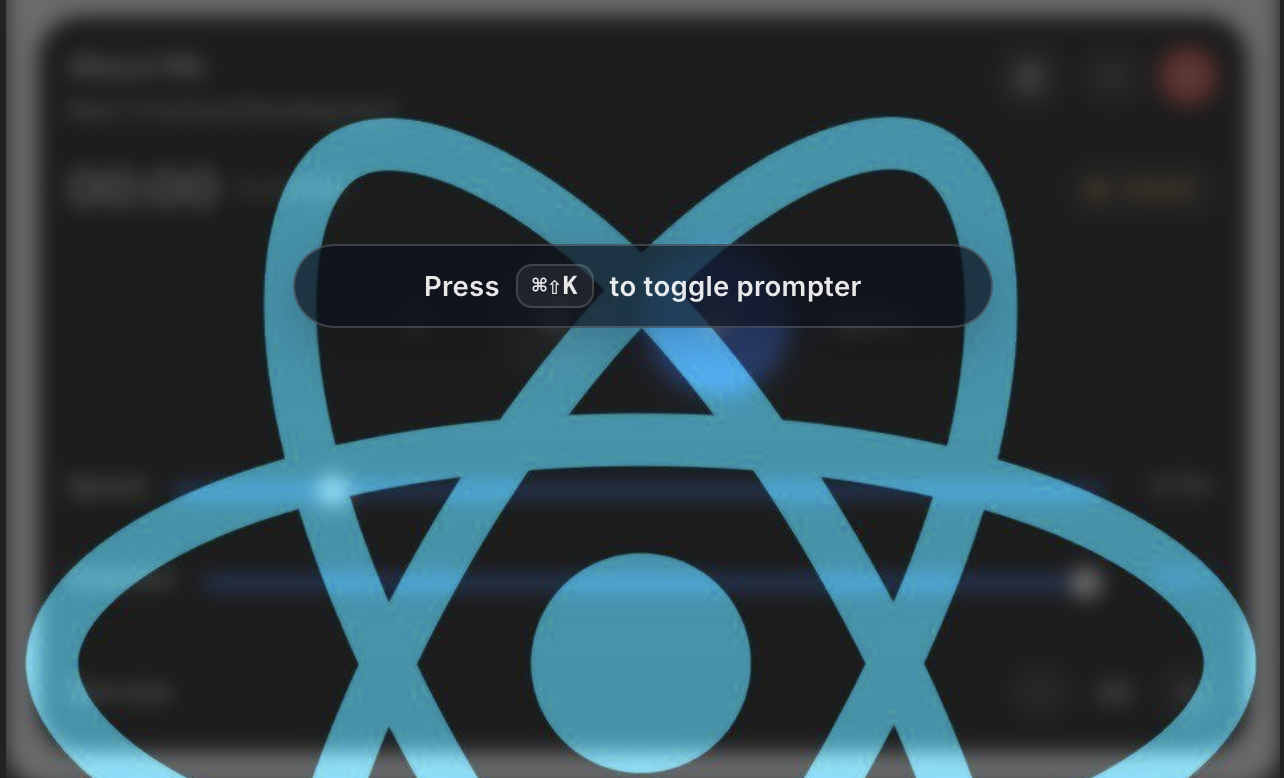
Control your presentation flow without ever touching the mouse.
Power Tip: Section Jumps
In high-stakes calls, conversations are rarely linear. If you use Markdown headings
(#,
##), Glance automatically creates valid jump points.
Press Ctrl + [Number] to jump instantly to that section. Perfect for jumping back to a specific talking point during a Q&A session.
Reliability & Security
Because Glance is a local desktop application, it works perfectly even if your internet connection drops. More importantly, your business-critical scripts, sales demos, and confidential notes never touch a server.