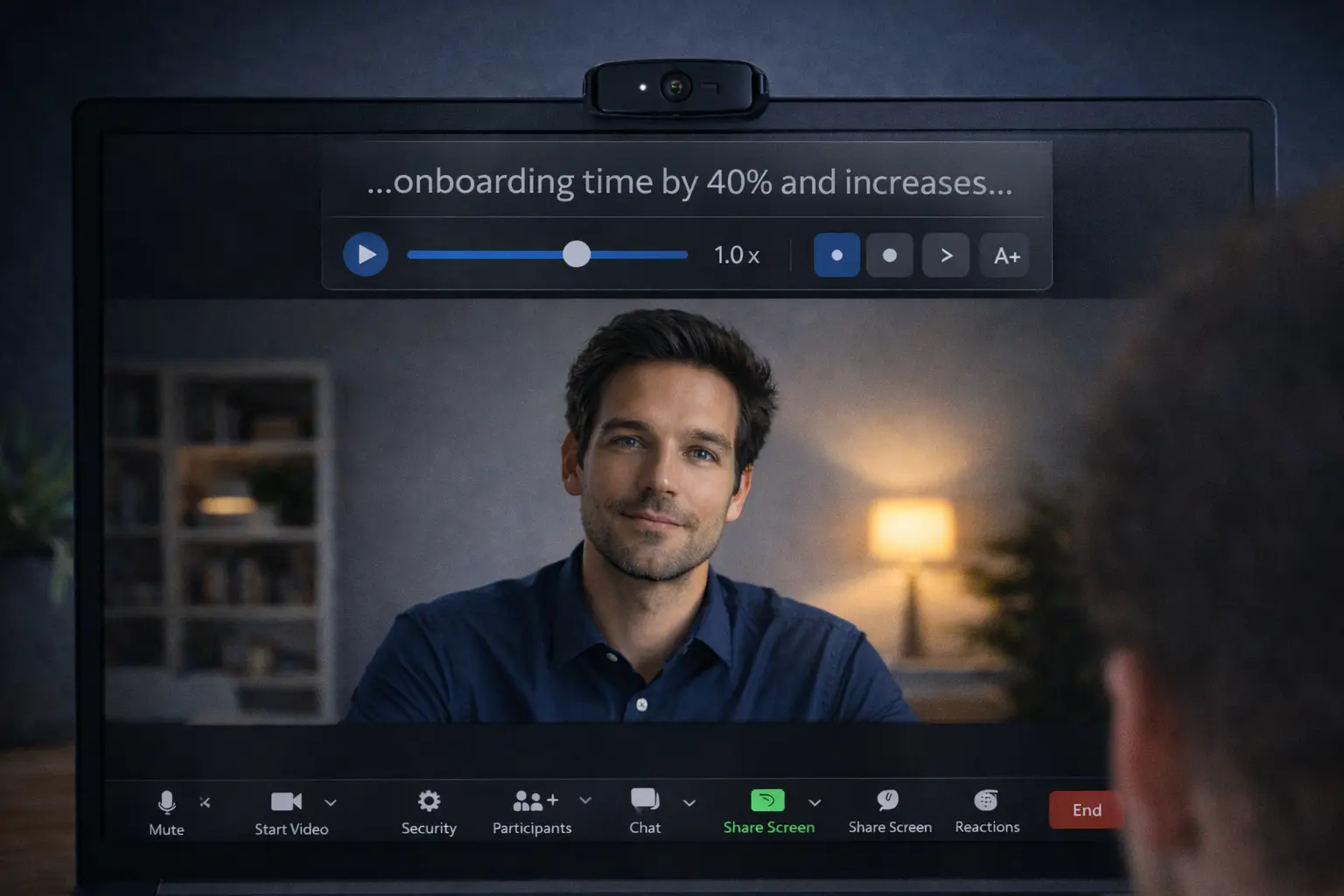
Everyone does it. The quick glance to the notes. The “just checking one thing” dip of the eyes.
And then the other person’s expression changes. Slightly. Like they’re not sure you’re fully there.
On Zoom, looking down doesn’t read as thoughtful. It reads as you reading.
If you want to keep eye contact on video calls while still using notes, you need two things: better note design and better note placement. Not willpower.
Why looking down is so obvious on Zoom
On a laptop, the camera is above your screen. Your notes are usually below it. Your gaze drops. Repeatedly. It’s subtle on your side. It’s loud on theirs.
On video, people can’t see what you’re looking at. They only see you looking away.
That’s why this isn’t about “confidence.” It’s about reducing the distance between your notes and the camera.
The rule: notes go beside the camera, never below it
If you remember one thing, make it this:
- Side glance = looks like thinking
- Down glance = looks like reading
So stop putting notes on your lap, on a notebook on the desk, or at the bottom of your screen. Put them beside the webcam.
The easiest layout (works on one screen)
- Put Zoom in the top center of your screen.
- Shrink the Zoom window so faces sit close to the camera.
- Put your notes in a narrow window right next to Zoom, at the top.
If you have two screens
Two screens can help. Or they can ruin you.
Best setup: Zoom window on the screen with the camera, and notes window on the same screen, right near the lens.
Worst setup: Zoom on laptop, notes on a monitor off to the side.
The real fix: write notes you can glance at, not read
Most “Zoom notes” are written like a speech. That’s the mistake.
Write cue notes, not sentences
- single words
- short bullets
- numbers
- names
- transitions (“then → now → next”)
Cue notes let you glance and return. Reading sentences pulls your eyes away for too long.
Limit yourself: one screenful max
If your notes require scrolling, you’re going to look away.
- one page
- one screen
- one glanceable layout
The “camera anchor” trick
Put a tiny visual marker next to your webcam. A dot sticker. A sticky note corner. Anything.
You glance at notes, then immediately return to the anchor.
What to do when you need a script (not just notes)
Sometimes you’re not using notes. You’re delivering exact lines.
A practical option is a teleprompter overlay—text that sits near your webcam so you don’t keep looking down.
Download free script templates for common scenarios like sales calls, webinars, and demos to get started quickly.
A tool like Glance is designed for this specific problem: keeping your script close to the camera, with controls to adjust pace and jump between sections without switching windows mid-call.
- script for key lines, not every line
- write like you speak
- leave room to react
Common mistakes (and what to do instead)
- Mistake: Notes on paper on the desk
Do instead: Notes beside the webcam on-screen - Mistake: Long paragraphs
Do instead: Cue bullets - Mistake: Scrolling notes
Do instead: One screenful only - Mistake: Two monitors with head-turning
Do instead: Notes near the camera screen - Mistake: Trying to “hide” note use
Do instead: Make it invisible through placement and brevity
A 90-second practice drill
- Open a private Zoom meeting.
- Put 6 bullets on screen beside the camera.
- Answer a common question while glancing only when needed.
- Record it.
- Watch for one thing: do your eyes drop down?
Quick FAQ
How do I read notes on Zoom without looking down?
Place notes beside your webcam, use short cue bullets, and keep Zoom faces near the camera.
Where should I put my notes during a Zoom meeting?
Near the camera — top of the screen, next to the Zoom window. Not below it.
How can I maintain eye contact on Zoom while using notes?
Use cue notes and a simple gaze rhythm: glance → return to lens.
Are teleprompter apps worth it for Zoom calls?
If you need to deliver exact lines, yes. Keep the text close to the webcam and don’t read long paragraphs.
The takeaway
On Zoom, your notes aren’t the enemy. Your layout is.
Shorten the notes. Move them near the camera. Stop scrolling.
You’ll still be using help. It just won’t look like it.