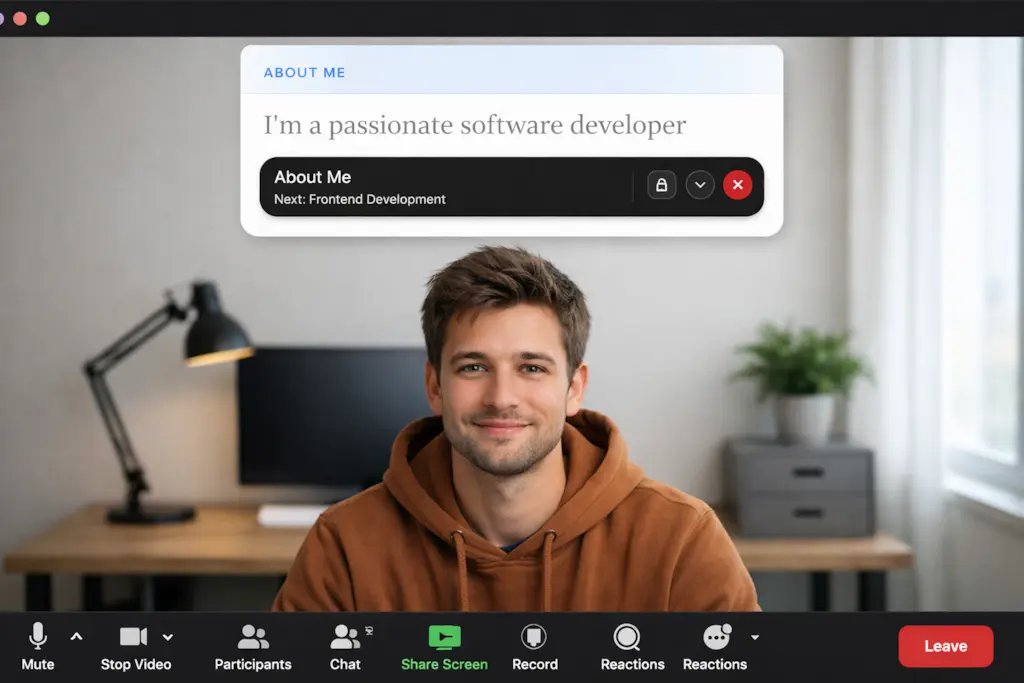
If you run team standups, client reviews, or all-hands in Microsoft Teams, you know the problem: your notes are on your desk, your camera is above your screen, and every time you glance down you break the connection.
A teleprompter overlay fixes this. Glance floats your script in a transparent window near your webcam so you maintain eye contact while reading naturally. It stays on top of your Teams window without appearing in your camera feed.
macOS + Windows. Local-first privacy. No account.
Download Glance (macOS)
Download Glance (Windows)
Why Teams calls need a teleprompter overlay
Microsoft Teams puts faces in the centre of the screen, but your webcam sits above the display. Your notes sit below the camera — on your desk, in a notebook, or in a window you have to scroll. That gap is the problem:
- Looking down at notes reads as disengaged or unprepared
- Side-glancing at a second monitor is obvious to everyone watching
- Scanning a document on screen pulls your eyes away from the lens for seconds at a time
Glance places your script in the top zone of your screen — right next to your camera — so you can read without breaking eye contact.
This matters more on Teams than on any other platform. Teams calls tend to be longer, involve more participants, and mix presentation with conversation. A visible note-check erodes trust faster in these settings.
Setting up Glance with Microsoft Teams
The ideal Teams + Glance layout takes 30 seconds:
- Open Microsoft Teams and join your meeting
- Launch Glance — it appears as a transparent overlay near your camera
- Drop your script — paste text or import a Markdown file
- Position Glance in the top-center of your screen, just below your webcam
- Adjust opacity so your script is readable but your video feed is visible behind it
Glance stays on top of Teams without hiding behind it. Your audience sees only your face — not the overlay.
Teams-specific layout tips
Teams has a dense interface. The toolbar, chat sidebar, and raised-hands panel can push your video feed around. Keep your Glance overlay in the top-center of the display, away from Teams UI elements. If you use Together Mode, position Glance slightly above where your face appears on screen.
Tips for screen sharing on Teams
Screen sharing in Teams works differently depending on what you share. Glance behaviour changes with it:
- Share your entire screen — participants see Glance. Keep the overlay opacity low so it blends into your background.
- Share a single window (e.g. a browser or PowerPoint) — Glance stays invisible to participants. This is the safest option for demos.
- Share a PowerPoint Live presentation — your slides are shared, but Glance stays on your main display, hidden from viewers.
Best practice for Teams demos:
- Share only the window you are presenting from, not the full screen
- Keep Glance on your main display — it stays private while your audience sees only the shared window
- Test your layout before the live call with a Teams test meeting
Use cases for Teams + Glance
- Client reviews: Walk through quarterly results or project updates with confidence, hitting every talking point
- Team standups: Deliver your daily updates without forgetting key metrics or action items
- All-hands meetings: Follow your agenda script naturally while watching reactions across the room
- Sales calls: Keep your pitch structure on hand while adapting to live questions
- Internal training: Guide new team members through processes with a prepared walkthrough
Built for live calls, not recording
Most teleprompter apps assume you are recording a video — script, record, retake, edit. Glance is designed for the live moment you cannot redo: the Teams meeting where people are watching in real time.
Real-time controls that matter in conversation:
- Auto-Pause with Voice — Glance pauses when you stop speaking, resumes when you continue. No manual fumbling.
- Speed adjustment — slow down for complex topics, speed through transitions
- Section jumps — Markdown headings become Ctrl+[number] shortcuts so you can skip between agenda items instantly
- Quick Hide — dismiss the overlay with a keyboard shortcut when going off-script or answering unexpected questions
Privacy-first by design
Glance runs entirely on your device. Your scripts never leave your machine. Audio analysis for Auto-Pause happens locally — nothing is stored, uploaded, or transmitted.
- No accounts. No login.
- Offline after activation. One-time internet connection to activate your license, then fully offline.
- No recording. Glance does not record your screen, camera, or audio.
- Your scripts stay on your device. Always.
Cross-platform
- macOS: Download the ZIP, drag Glance to Applications, approve in Privacy & Security.
- Windows: Available via the Microsoft Store for a clean, automatic install.
FAQ
Does Glance appear in my Teams camera feed?
No. Glance is an on-screen overlay on your device. It never appears in your camera feed or in any recording.
Will meeting participants see the teleprompter when I share my screen?
Only if you share your entire screen. If you share a single window (like a browser, PowerPoint, or specific app), Glance stays invisible to participants.
Does Glance work with Teams on both macOS and Windows?
Yes. Glance is available for both macOS and Windows. The overlay behaviour is identical on both platforms.
Can I use Glance with Teams Together Mode?
Yes. Position the overlay slightly above where your face appears in Together Mode. Glance remains on top and readable.
Does Glance work with Teams breakout rooms?
Yes. Glance stays active across all Teams contexts — main room, breakout rooms, and lobby.
How do I hide Glance during a Teams recording?
Use Quick Hide (keyboard shortcut) before recording starts, or share a single window instead of your full screen.
Does Glance work with Teams on the web (browser)?
Yes. Glance is a window-level overlay, so it works with any app — including Teams in a browser, the desktop client, or the Progressive Web App.
Do I need an account?
No account required. No login. No cloud sync. Just the app.
Can I use Glance offline?
Yes. After a one-time internet connection to activate your license on this device, Glance works fully offline.
Get Glance
If you present, demo, or lead calls in Microsoft Teams and need to stay on script without looking away, Glance is built for that.
Download Glance (macOS)
Download Glance (Windows)